

You can check analytics through 2 categories on your personal profile:
Posts and activity and dashboard
1. posts and activity
Every post you share on LinkedIn has analytics. You can access them directly in the post.
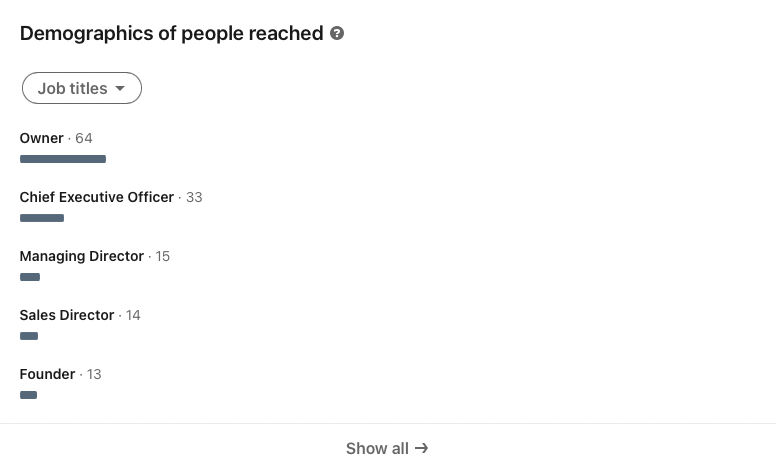
It shows up as a small graph at the bottom of your post. When you click on the chart, a pop-up window with three columns appears.

The companies from which your customers come
People who have the same title, for example, lawyer
Location of accounts that view your post
2. Dashboard
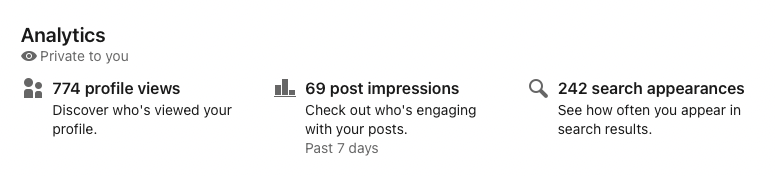
Everyone has access to their Analytics Dashboard. To find yours, go to your profile, scroll down below the About section and the Featured section.
Each of the three numbers on the desktop can be clicked for more information.
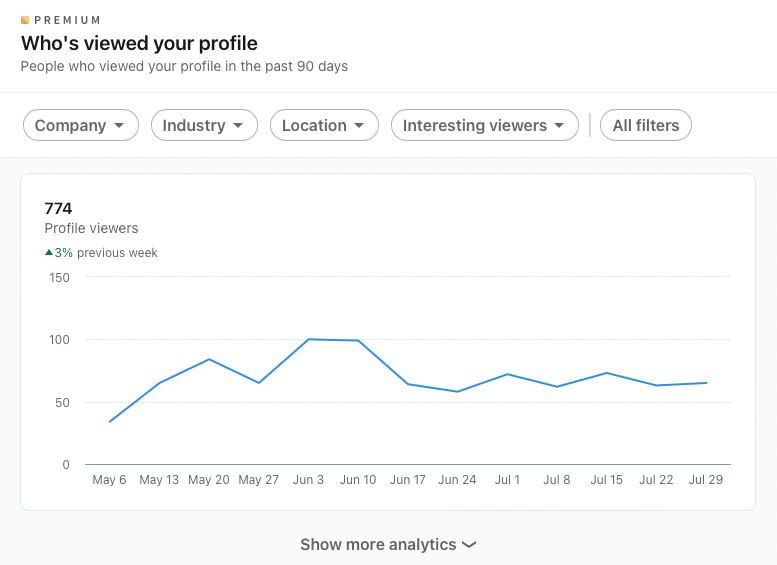
Who viewed your profile:
This number refers to the total number of views of your profile in the last 90 days. If you have Premium service, you will be able to see WHO viewed your profile. Without Premium, you can see the numbers, but not the names.
Pay attention to percentage changes - if your percentage makes a jump, then check your LinkedIn activity and posts to see what's driving the increase.
Post Views
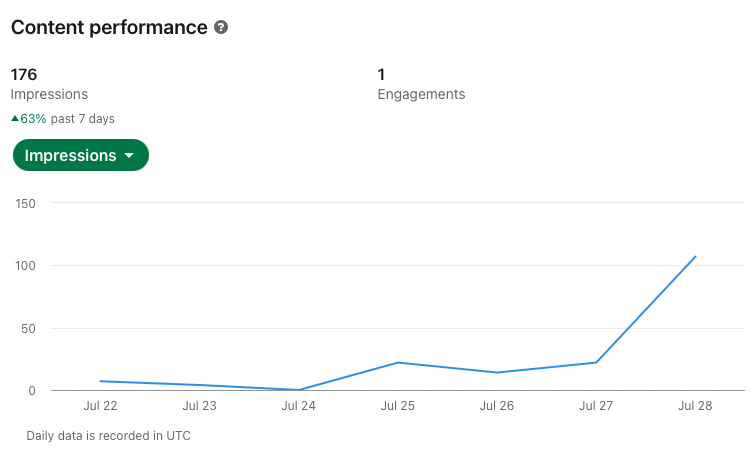
Post views refer to the number of people who have viewed your latest post. This applies whether your post is text, video, live video. When you click on this number, it will take you to a screen that shows all your posts. To find out your individual post analytics, scroll back to the top in this post!
Appearance in the search engine
This number will bring up a window with your weekly search statistics.
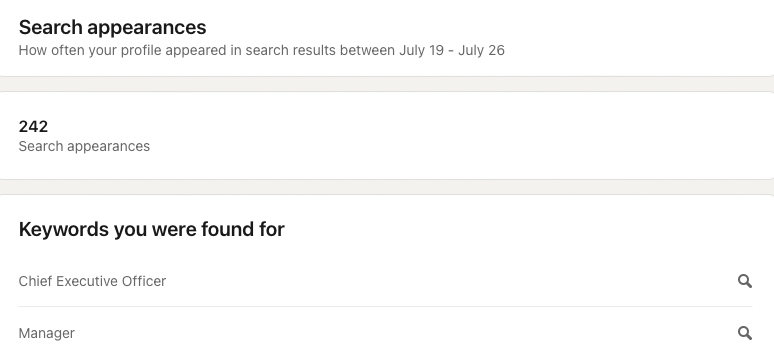
Statistics will show you three clear numbers:
where your searchers work
what your searchers are doing
keywords that users have used (this third number is only shown if you appear in more frequent search results)
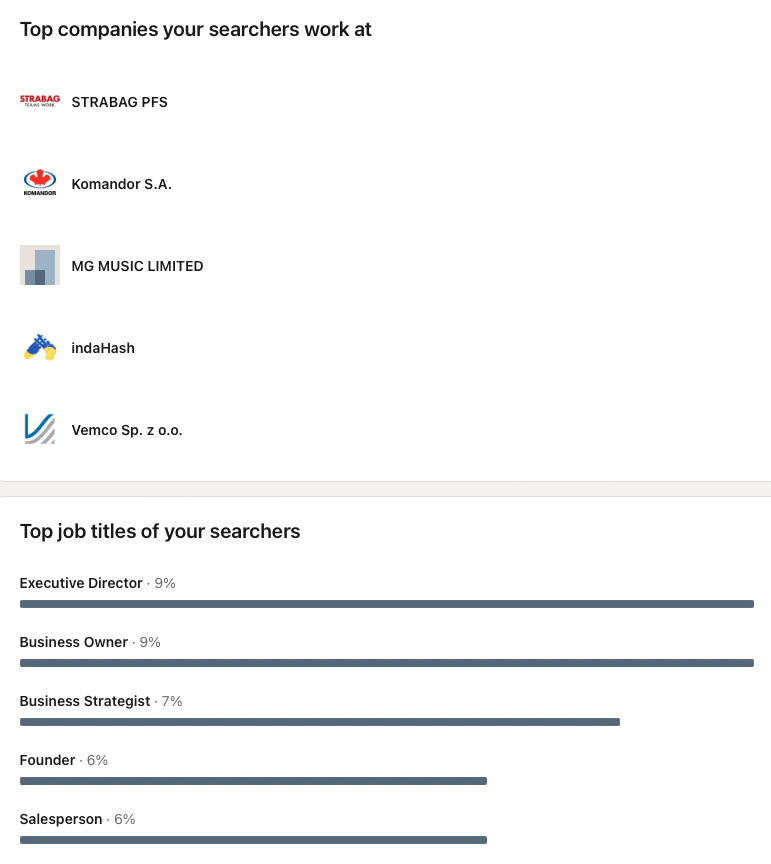
If you haven't updated your profile on LinkedIn in a while, you may be found for roles or skills that are no longer applicable to your current role. This is one of the key reasons why it's important to update your profile on LinkedIn, especially the Skills and Experience sections!