Author mode on LinkedIn - is it right for you and your business?
Author Mode is a setting designed to encourage users to post more of their own content. It aims to provide users with new opportunities to increase followers and engagement by displaying their original content more prominently.
But what does author mode mean for you? Should you enable this feature? And will it be a good fit for you?
How author mode changes your profile
When you turn on creator mode, your profile page will look a little different. Here's how:
From "connect" to "follow"
Users will now have the option to choose whether they want to connect with you - or simply follow you. It's estimated that 50% of your future connections will come from profile views, so the idea behind the "follow" option is to help you easily grow your audience.
The number of followers will be displayed
The key difference between author mode and the standard profile view is that the number of followers you have is displayed in your profile for all to see. The number of contacts you have will be displayed next to the number of followers.
Previously, whether you had a million contacts or five hundred, your profile always displayed 500+ contacts - equating everyone who had accumulated five hundred or more.
With author mode, influencers and leaders can illustrate that they have a large number of followers. But what about when you don't have a large audience? If you don't have more than 3,000 followers, it may be better to stay with "connect" then.
Hashtags displayed under your headline
One useful feature of Author Mode is that it allows you to add up to five hashtags, which will appear at the top of your profile.
They can be edited at any time, but they are a useful way to quickly show visitors to your profile what you do for a living and allow them to discover your profile more easily.
When you set author mode, LinkedIn will give you suggestions based on topics you frequently write about. However, it makes sense to choose your own, as this is a key way for your profile visitors to know what your content is about in general. It also makes it easier for your profile visitors to follow more of your content by choosing to follow the hashtags you use in your content.
Featured and Activity sections displayed first
When you enable Author Mode, LinkedIn will reorder your profile to show the Featured and Activity sections first. The Activity section will expand to show your recent content - and will no longer show your likes and comments. This means visitors can more easily find the content you want people to read, rather than your interactions with other people.
Creator mode is a shift from LinkedIn as a place to build relationships to showcasing content. When creator mode is off, one of the first things people see on your profile is your headline and Information section, both of which tell the story of who you are and what your company does. Articles you've written will also be displayed more prominently when creator mode is on.
How to enable author mode
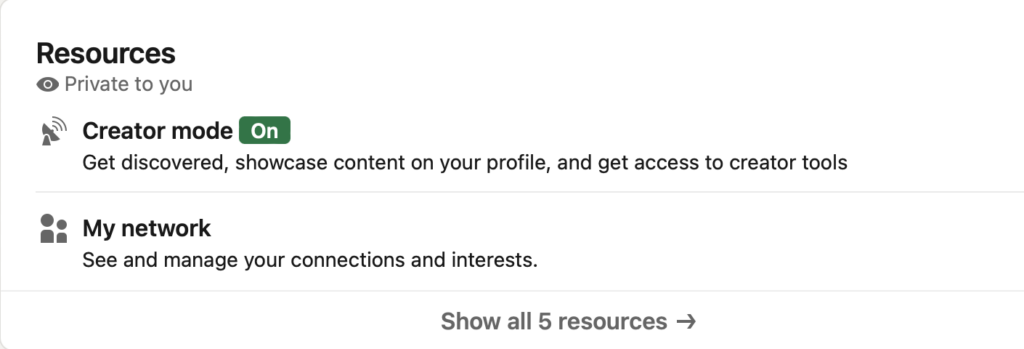
Author mode can be easily found in the dashboard of your profile. Follow the following steps to enable it.
- When viewing your profile, click creator mode: off under your Dashboard. This will turn off the creator mode feature. Click Next.
- Add 1-5 topics (hashtags) that you write about most often. Choose both broad and niche topics to best represent your content.
- Click Save. creator mode has been enabled!
- You can edit your theme settings or disable creator mode by clicking creator mode: On from your Dashboard.
Should you enable author mode?
How to find out if the author's mode is right for you?
The feature is aimed at "LinkedIn creators" - that is, members who frequently share content and updates with the rest of the network, especially content that showcases their experience, starts conversations and builds community.
The function is probably best suited to those who already have:
A good network, but who want to increase their number of followers, not connections.
A solid content strategy and who regularly create new content.
However, if you decide that author mode is not for you, it can be easily turned off and your profile will revert to standard mode.
Summarizing
Before you turn on creator mode, measure and record your profile views, average post views and search engine appearances for a month. Stick with creator mode for a month and compare your results. The decision is yours, but you will make it with full knowledge. It's easy to disable creator mode at any time if it's not working for you. Some people say that Wizard Mode has negatively affected their statistics. Some see a slight difference.
Whether you choose to turn on creator mode or not, you will get the most out of LinkedIn if you consistently create content that is relevant, interesting and valuable to your readers!